Text to Video: A Complete Guide to Generating Video From a Prompt
How to turn text into video with AI — what to put in your prompt, how scenes, voice, and music are produced, and how to go from a one-line idea to a finished, on-brand cut.
Text to video is the most direct way to create with AI: you describe what you want in words, and a finished video comes back. But “describe what you want” hides a lot of craft. This guide covers what to put in a prompt, what happens after you hit generate, and how to turn a rough idea into a polished, on-brand cut.
What “text to video” really means today
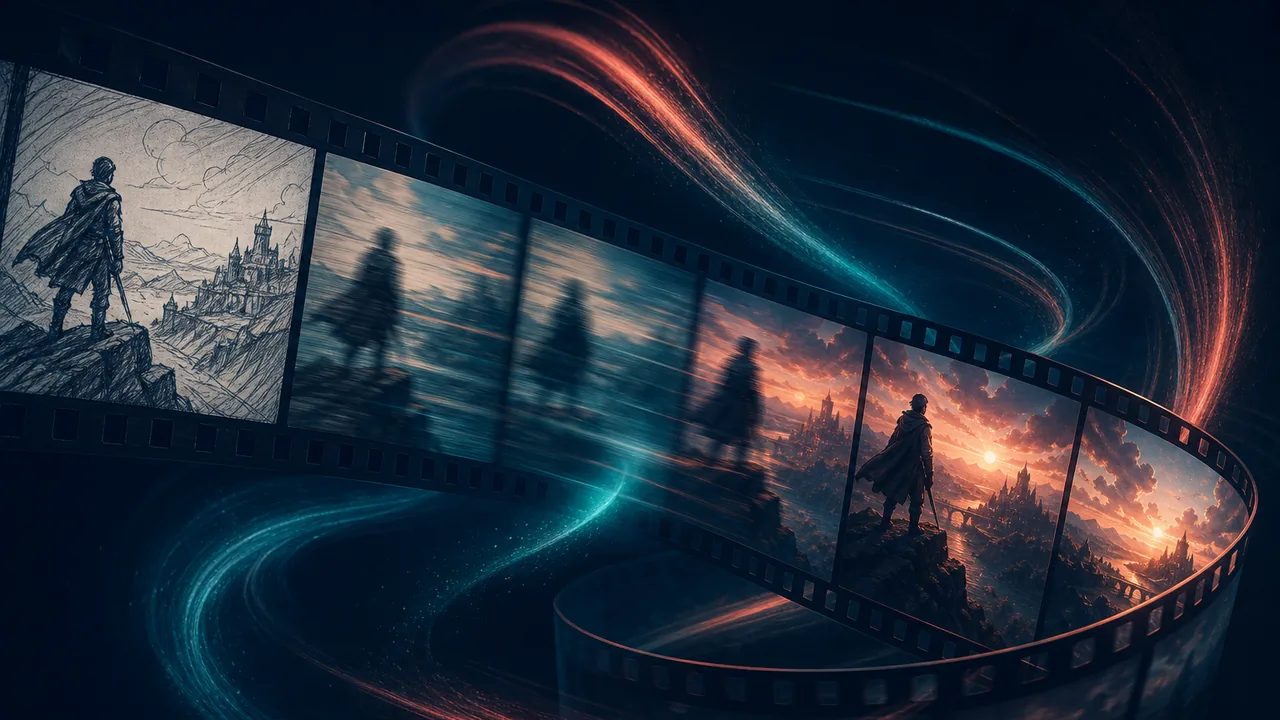
In 2026, text-to-video rarely means a single model animating your sentence for a few seconds. In a capable tool it means a pipeline: your text becomes a strategy, a script, a storyboard, generated scenes, voiceover, music, and a final render. (For the full picture, see What Is AI Video Generation?.) Your prompt is the brief that drives all of it — so the quality of the prompt sets the ceiling on the result.
Anatomy of a great prompt
A strong text-to-video prompt answers five questions:
- Subject & message. What is this about, and what’s the one thing it should land?
- Audience. Who is watching, and what do they care about?
- Tone & style. Energetic, premium, playful, cinematic, documentary?
- Length & format. 15s vertical social? 30s TV spot? 60s explainer?
- Call to action. What should the viewer do next?
A weak prompt: “A video about our project management app.”
A strong prompt: “A 30-second explainer for a project-management app aimed at small agency owners drowning in spreadsheets. Calm, confident tone. Show the before (chaos) and after (one clean board). End on ‘Start free at example.com.’ 16:9.”
The second version gives the pipeline a narrative, an audience, and a CTA — so the script, visuals, and pacing all align.
Tips that consistently improve results
- Lead with the hook. Tell it how to earn attention in the first two seconds.
- Use concrete, filmable detail. “A founder sketching on a glass wall at dusk” generates better than “innovation.”
- Name what to avoid. “No stock-photo gloss, no fake smiles” steers away from generic AI tells.
- Specify on-screen text exactly. If a word must appear, put it in quotes so it’s rendered as designed copy, not improvised.
- Pick a style instead of over-describing. A video style encodes pacing, look, and structure so your prompt can focus on substance.
What happens after you hit generate
- Strategy & script. The pipeline chooses an angle and writes the narration and any dialogue.
- Storyboard. Each scene is planned — shot, framing, motion — before generation.
- Image-first scenes. A still is generated per scene and reviewed for quality and consistency before it’s animated. This is the checkpoint that keeps the video clean.
- Voice & music. Narration is voiced with a custom AI voice; music is scored to the pacing; captions can be synced word-for-word.
- Assembly & render. Scenes, transitions, audio, and captions are composed into the final MP4.
Control you actually have
- Duration — including frame-exact :15 / :30 / :60 for broadcast.
- Aspect ratio: 16:9, 9:16, 1:1, 4:5, or 2:3, and export up to 4K.
- Voice — design a narrator, or give characters distinct voices.
- Brand — paste a URL or upload assets to ground visuals in your real brand (see Turn a Website URL Into a Branded Video).
From draft to done: refine in plain language
The first render is a draft. Improve it conversationally: “tighten the first scene,” “use a warmer grade,” “swap the VO for a calmer read,” “add captions.” Because refinement edits the existing video, your strong scenes survive while the weak ones get better — no timeline surgery required.
When to use a prompt vs. a URL or topic
- Prompt — when you have a specific creative idea and want control over scenes and tone.
- URL — when you want a brand-accurate video built from a real page.
- Topic — when you want the tool to research and script a subject for you.
All three feed the same pipeline; pick whichever matches where your idea starts.
Start writing your prompt
The best way to learn text-to-video is to try a real brief. Open the composer, write three or four specific sentences, and see what comes back — then refine.
Frequently asked questions
- How do I turn text into a video?
- Write a prompt describing the video you want — subject, audience, tone, and length — and an AI pipeline turns it into a script, storyboard, generated scenes, voiceover, and music, then renders a finished video. With Wavemaker you can do this from the composer in minutes and refine the result in plain language.
- What makes a good text-to-video prompt?
- Specifics. Name the subject and the single key message, the audience, the desired tone, the length, and the call to action. Concrete sensory detail ('a barista pouring cold brew over ice in a sunlit kitchen') beats vague adjectives ('a nice coffee video').
- Can I control the length and aspect ratio?
- Yes. You can request a target duration (including frame-exact broadcast slots) and any common aspect ratio (16:9, 9:16, 1:1, 4:5, or 2:3) and export up to 4K.
- Does text-to-video include voiceover and music?
- Yes. The pipeline writes narration, voices it with a custom AI voice, and scores music to match the pacing. On-screen dialogue is baked into clips; off-screen narration and music are layered during assembly.